Guides
Adding Themes in Google Slides
Google Slides makes it easy to apply themes to your deck. Whether you’re creating a webinar, internal pitch, or client-facing presentation, adding a theme helps keep your slides visually cohesive. This tutorial walks you through how to access the theme menu, choose or import a theme, like your company’s slide template, and apply it across your presentation.
1
Access the Theme Options
- Go to the top menu and click on “Slide.” Then, select “Change theme” from the dropdown.

2
Select or Import a Theme
- Choose from the themes provided by Google Slides, or if you have a custom theme, import it. For instance, to import a company slide deck, search or locate your theme, such as “webinar template.”

3
Insert and Apply the Theme
- Click on “Insert,” select the theme you want (e.g., Zight Blue), and click on “Import theme.”

4
Add a New Slide
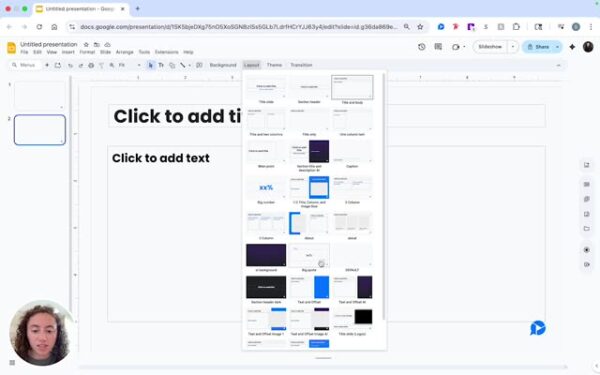
- To add a new slide, click “Add” and then go up to “Layout” to select from the imported slide designs.

5
Choose a Slide Design
- Select a design that fits your content, like “About” for introducing a topic, or a layout for numbers, which is pre-made.