Guides
How to Use Avatars in Zoom Video Meetings
This guide walks you through how to use Zoom’s animated avatars to add fun and expression to your video calls.
1
Navigate to the Video Settings
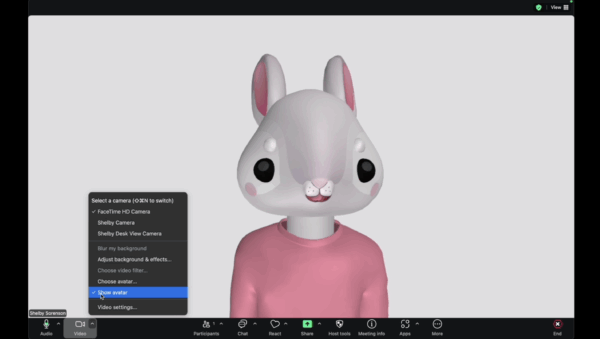
- Click on the arrow next to the video icon to open options.
- Select “Choose Avatar” from the menu.

2
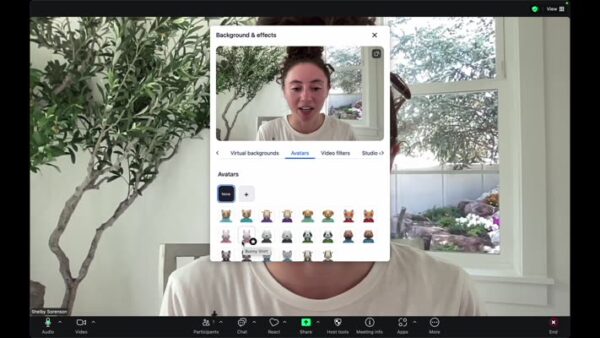
Browse the Available Avatars
- Browse through the available animal avatar options, such as cat, cow, dog, and bunny.
3
Select an Avatar
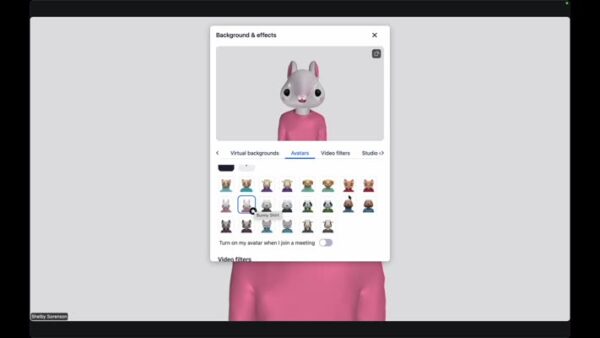
- Choose your preferred avatar and click the ‘X’ button to confirm. The avatar’s mouth syncs up with your speech, and blinking is also synchronized.
- Note that only the face syncs with your actions; hand movements are not captured.
4
Select “Show Avatar” to Remove
- If you wish to remove the avatar, go back to the video settings, click the arrow, and select “Show Avatar” to revert to your original video.