Guides
Extract OCR from Screenshots Using Zight Mac App
Easily extract text from images using Zight’s OCR feature for the Mac app. Note that for now this is only available on Mac. This guide walks you through how to take a screenshot, access it in the Zight Mac desktop app, and use built-in OCR to quickly copy and reuse text from the image—perfect for grabbing content from websites, documents, or apps in just a few clicks.
1
Take a Screenshot
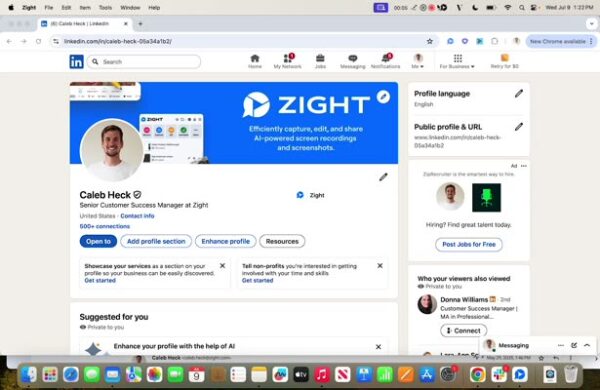
- Hover over your LinkedIn profile or the area you want to capture.
- Capture the screenshot.
2
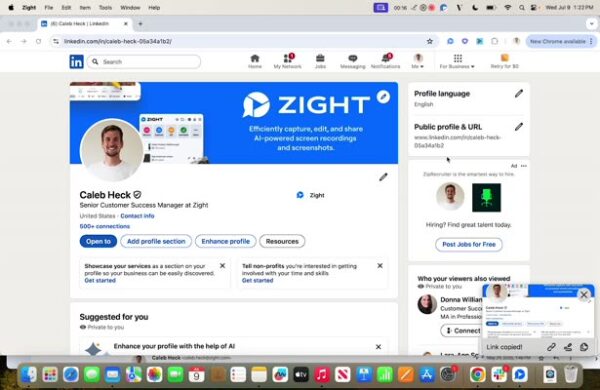
Open the Desktop App
- After capturing the screenshot, open your desktop app.
3
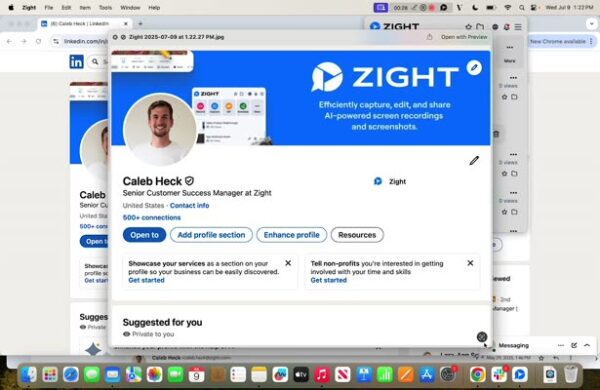
Hover Over the Screenshot
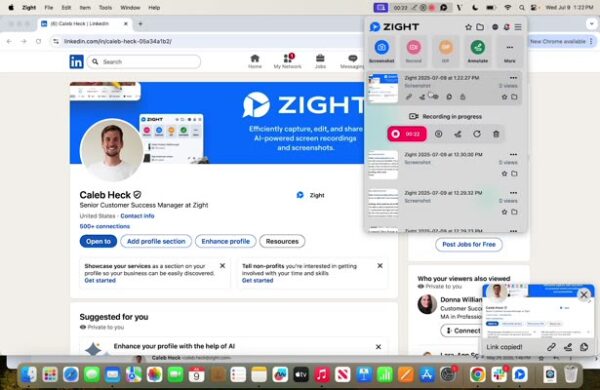
- Find the screenshot you just took and hover over it.
- Press the spacebar to open options.
4
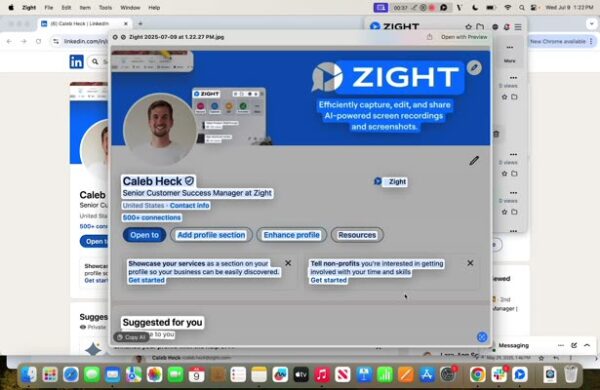
Select Text to Copy
- At the bottom right, choose whether to copy all text or hover over the specific text you need.
5
Paste the Text
- The text is now ready to be pasted wherever necessary.