Guides
How to Change Your Zoom Background
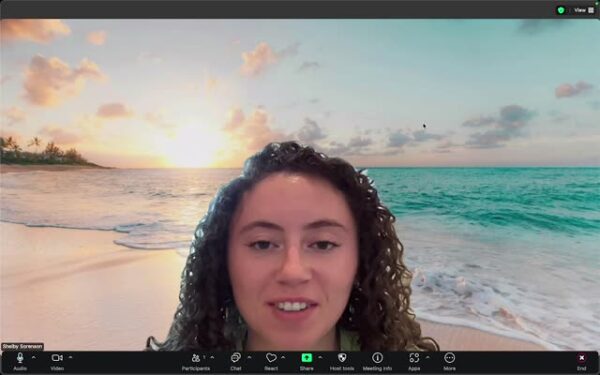
This tutorial walks you through how to change your Zoom background, whether you’re using one of Zoom’s presets or uploading a custom image for a more personalized look.
1
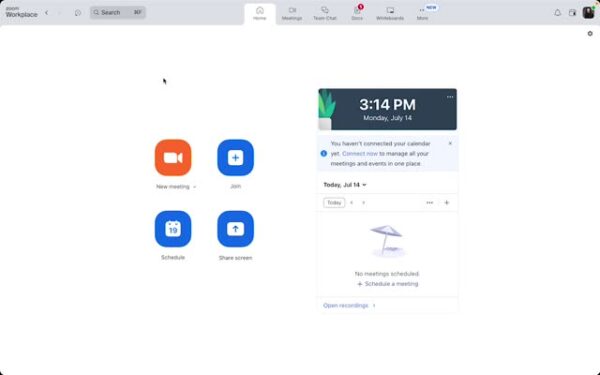
Open Zoom App and Start a New Meeting
- Launch your Zoom application.
- Click on “New Meeting”.
2
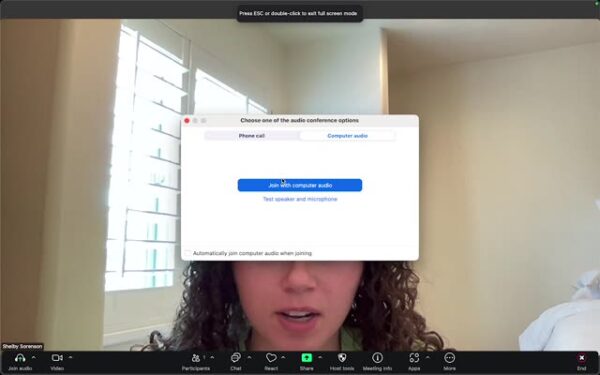
Join with Computer Audio
- Click on “Join with Computer Audio”.
- Or click the “X” to close any unnecessary windows.
3
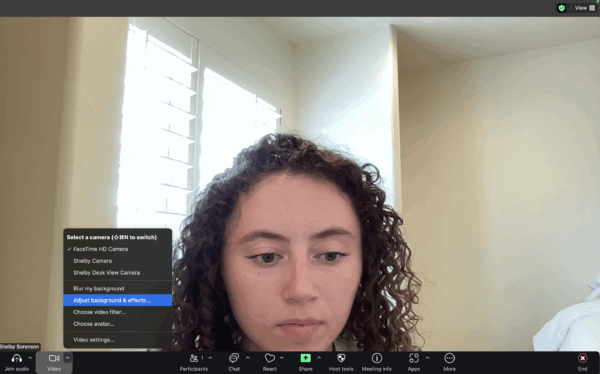
Access Video Settings
- At the bottom, click on “Video” and then “adjust Background and Effects”.
4
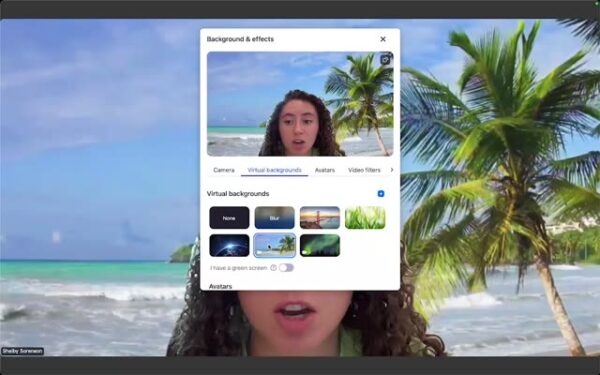
Choose a Virtual Background
- Zoom provides various virtual backgrounds you can choose from. Select an option that suits you.
- If you prefer a custom background, download an image from the internet.
5
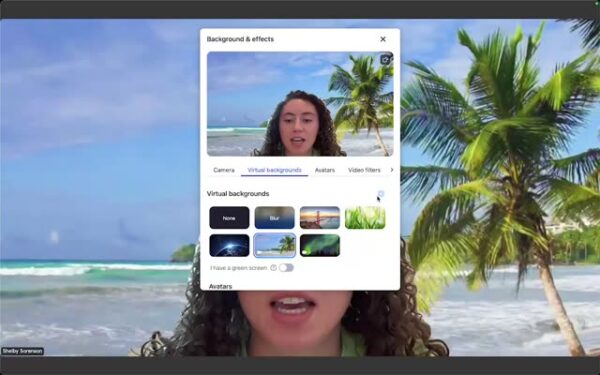
Add Your Custom Background
- Click on the “+”, then select “Add Image”.
- Locate and select the picture you saved, then click “Open”.
6
Finish Setup
- Your custom background is now set up and ready to use.
- End the meeting and join the correct call.