Guides
How to Convert MP4 to MP3 for Free
Fast, free MP4 to MP3 conversions in seconds with Zight, no sign-up required.
1
Upload Your MP4 File
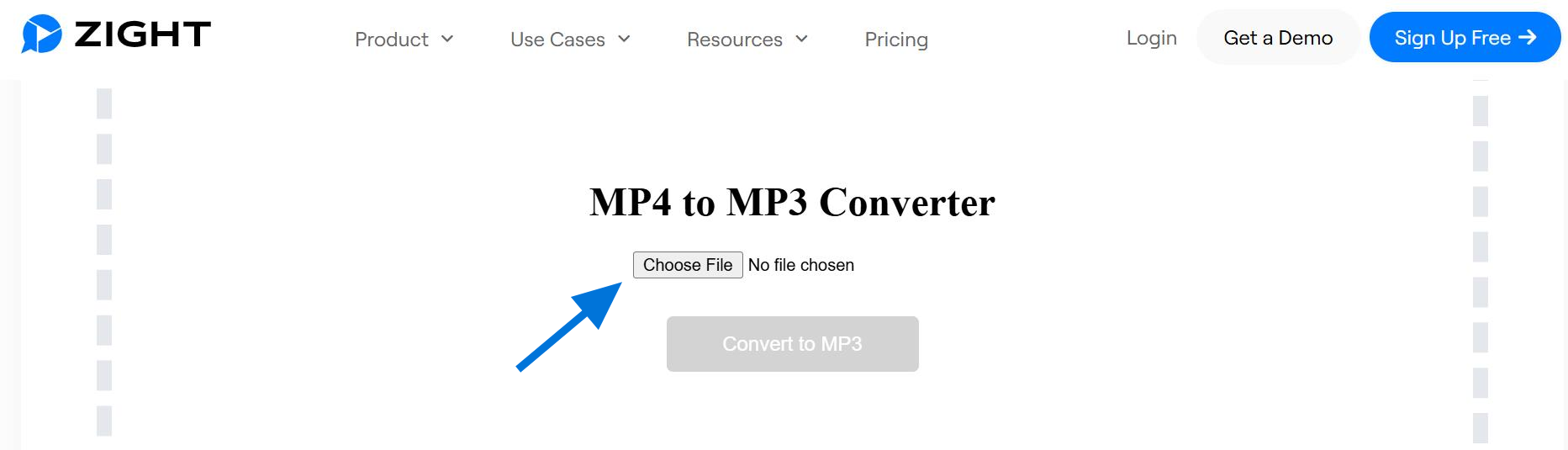
- Head to the Zight MP4 to MP3 converter page on your browser.
- Click “ Upload ” and select your MP4 file. Click the “ Choose file ” to browse your device. You should have your MP4 file saved on your computer.
- Once you locate your video, confirm the file under “ File Name, ” then click “ Open ” to add file. This will allow you to start the upload process.
- Alternatively, you can use Zight’s Screen Recorder to capture your video directly (e.g., record a Zoom meeting ) and convert it to MP3 instantly. Your video can be up to 30 minutes in length.
2
Download or Edit Your MP3
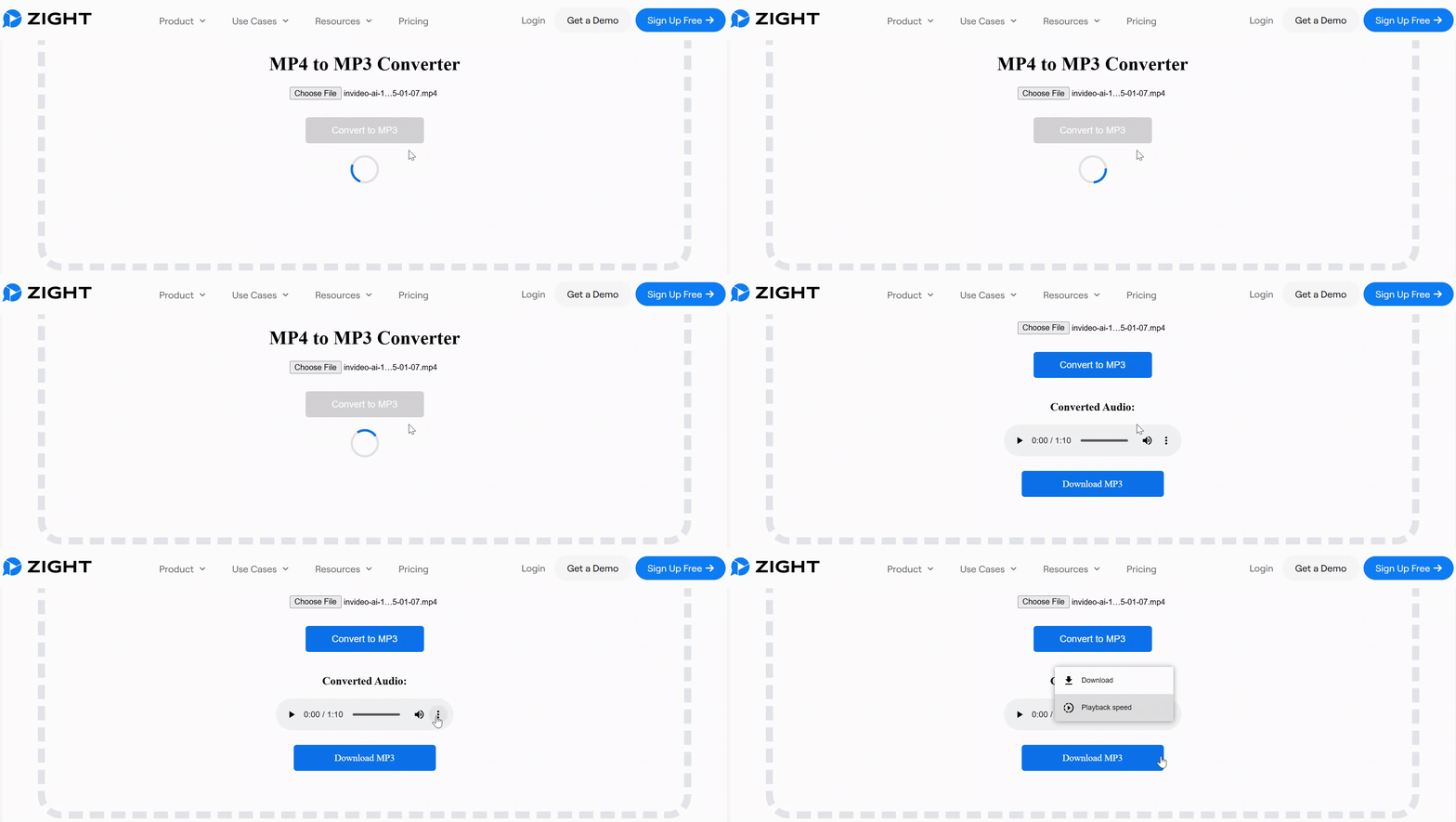
- Once you upload your MP4 video format, click “ Convert to MP4 ” which will automatically convert the file into an audio format. To get an idea of how the process works, here’s how:
- Once the process is complete, download your new MP3 file instantly, or continue editing as desired. The upload time for your MP4 video depends on its file size. Zight supports most MP4 files, regardless of their resolution or length.
- However, if you’re uploading a large file, such as a 4K video, it may take longer to process, depending on your internet speed.
- Once you download the output file, it will be in your Downloads folder. You can rename it to easily locate it or share it.
- Your Turn : Convert Your First File for Free