Guides
How to Use Figma Slots
This guide walks you through how to create and use Figma slots step by step. You’ll learn how to build a slot-enabled modal component, insert instances into slots, control available content with preferred instances, and add guardrails so your design system stays organized. By the end, you’ll be able to create modular components that scale across your design system while giving designers the flexibility they need.
1
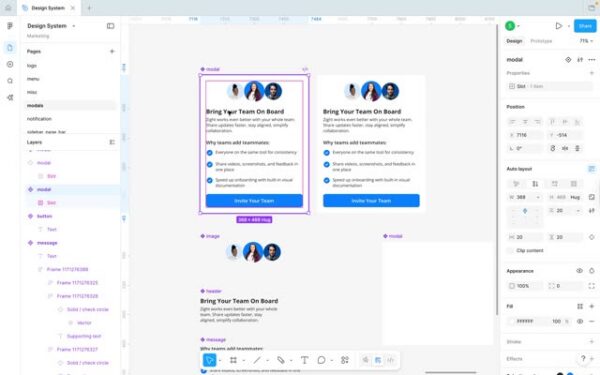
Create the base container frame and turn the modal into a component.
- Create a new frame that will become your modal container.
- Label the frame **modal** so it’s easy to identify in the layers and component set.
- Convert the “modal” frame into a component.
- Apply Auto Layout to the modal component so slot content can flow and be repositioned correctly.
2
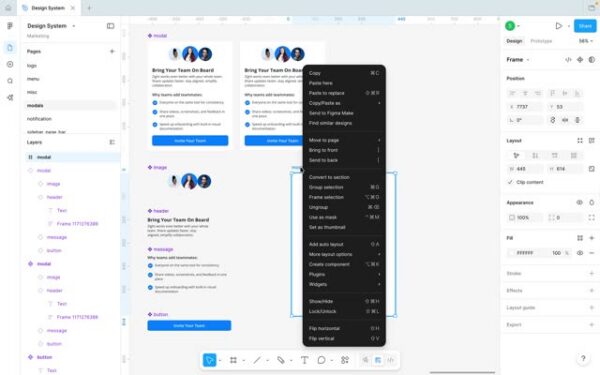
Create a second frame for the slot and add auto layout to the slot frame.
- Add another frame that will act as the slot container.
- Label this second frame slot .
- Apply Auto Layout to the slot frame as well. Make sure the slot is a frame, slots won’t work if it’s just a square/rectangle shape
3
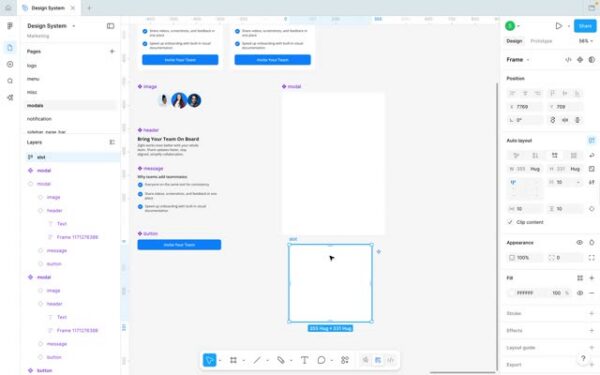
Place the slot inside the modal component
- Drag the slot frame into the modal component so it becomes the flexible content area.
4
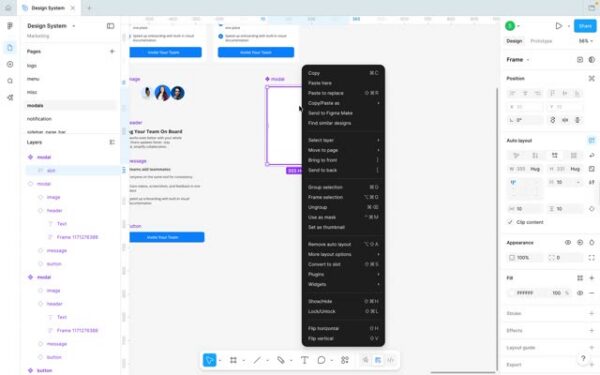
Convert the frame into a Slot
- With the slot frame selected, right-click and choose Convert to slot .
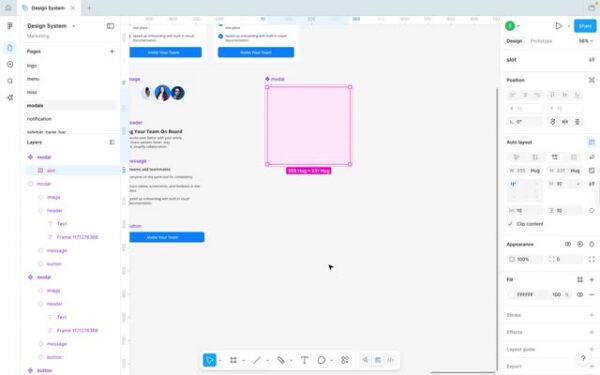
5
Create an instance of the modal component
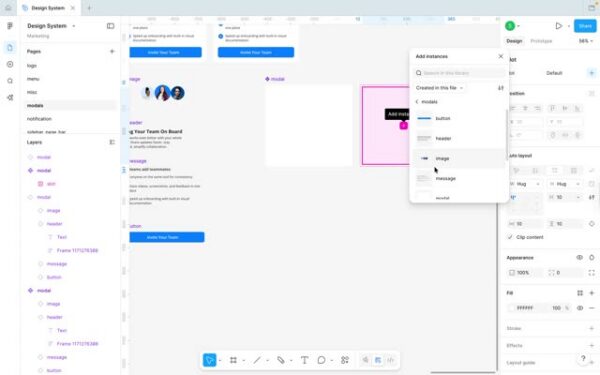
- Create an instance of the modal component; you should now see a plus (+) control for adding slot content.
- Use the plus menu (or the add option) to insert an instance into the slot.
6
Alternate method, drag instances directly into the slot
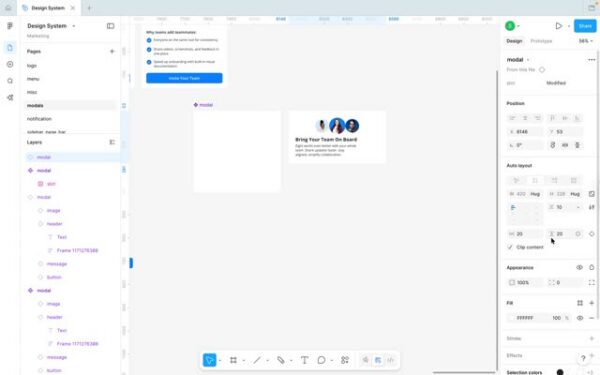
- Instead of using the plus button, you can drag an existing component instance into the slot and keep building.
7
Add guardrails by naming the slot and adding a description
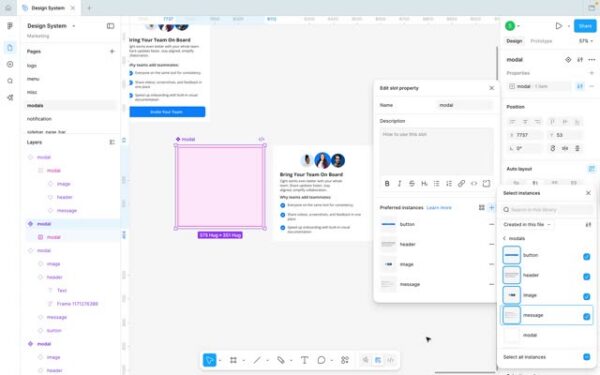
- To guide other designers, select the slot and in the slot properties give it a clear name .
- In slot properties, add a description explaining how the slot should be used.
8
Convert existing designs into slots using “Wrap in new slot”
- If you already have a designed set of components, select them and choose **Wrap in new slot** to turn the group into a slot-based structure.