Guides
Organize Your Browser Tabs with Chrome Tab Groups
Who else struggles with having way too many tabs open? This quick guide shows you how to use Chrome Tab Groups to keep your tabs tidy, color-coded, and easy to manage.
1
Hover Over the Tab
- Hover over the tab you want to group in Google Chrome.
- Right-click on the tab to open a context menu.

2
Select “Add Tab to Group” and Create a New Group
- Choose the “Add tab to group” option from the menu.
- Click on “New group” to start creating a group.

3
Label and Assign a Color to the Group
- Enter a name for the group.
- Choose a color for the group.
- Hit enter to save the group settings.

4
Add Tabs to the Group
- Drag and drop the tab into the group.
- Or Right-click on the tab and add it to the group.
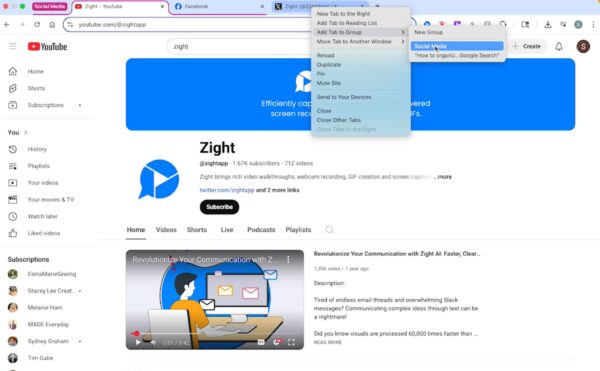
5
Collapse the Group
- Click on the group label to collapse and hide the tabs.
- To expand the group, click on the label.