Guides
How to Record and Export Meeting Notes with Zight
This quick guide shows you how to record a meeting and export notes with Zight to simplify follow-ups and keep your team aligned.
1
Join Your Meeting and Start Your Recording
- Start by going to your meeting platform, e.g., Google Meet.
- Navigate to Zight and begin recording your screen.
2
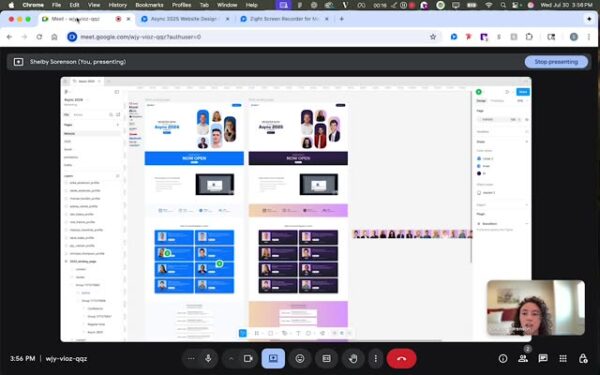
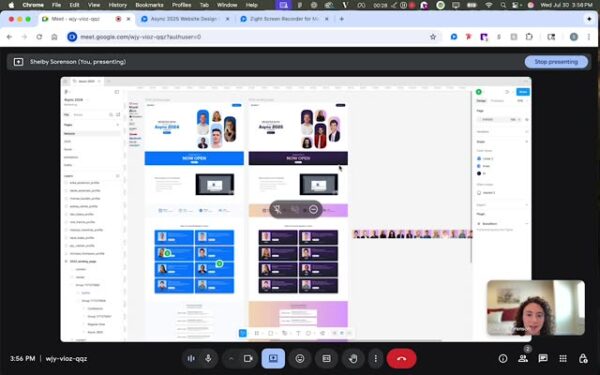
Conduct the Meeting
- Proceed with the meeting, sharing updates and discussions.
3
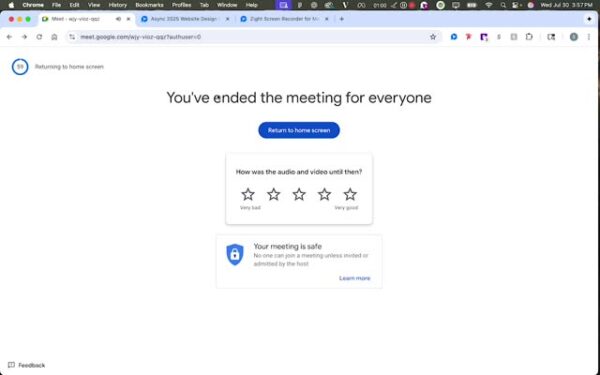
End the Meeting
- Conclude the call for everyone and stop the recording.
4
Accessing Meeting Notes
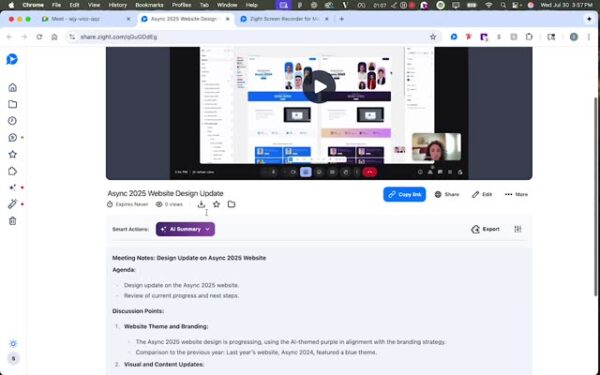
- Return to Zight and access the auto-generated meeting notes.
5
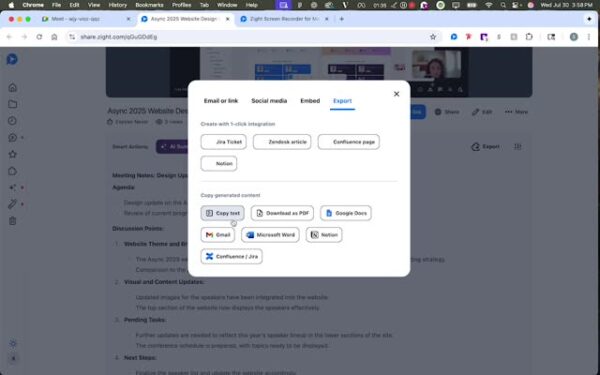
Exporting Notes
- Export notes to platforms like Google Docs, Word, or email.
- Copy text to clipboard for sharing via Slack, Teams, etc.