Guides
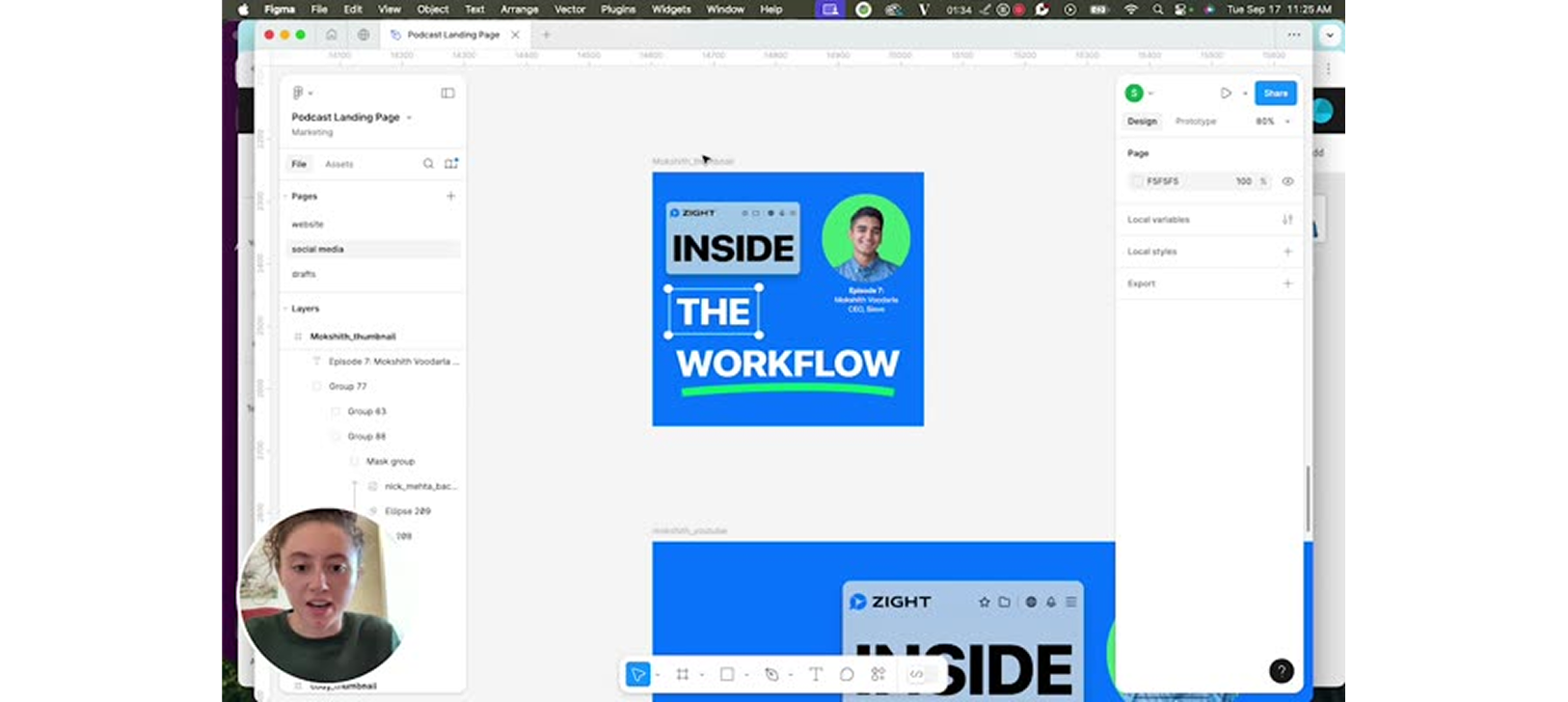
Step-by-Step Guide for Updating a Podcast Image in Figma
Need to remove a background from an image and drop it into your Figma design? This step-by-step guide shows you how to quickly take a photo, like one from LinkedIn, remove its background using Adobe Express, and replace it in Figma.
1
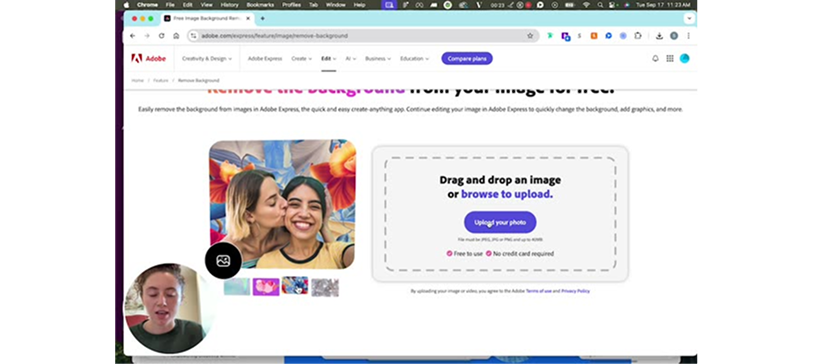
Open Adobe Express
- Navigate to Adobe Express for photo editing.
2
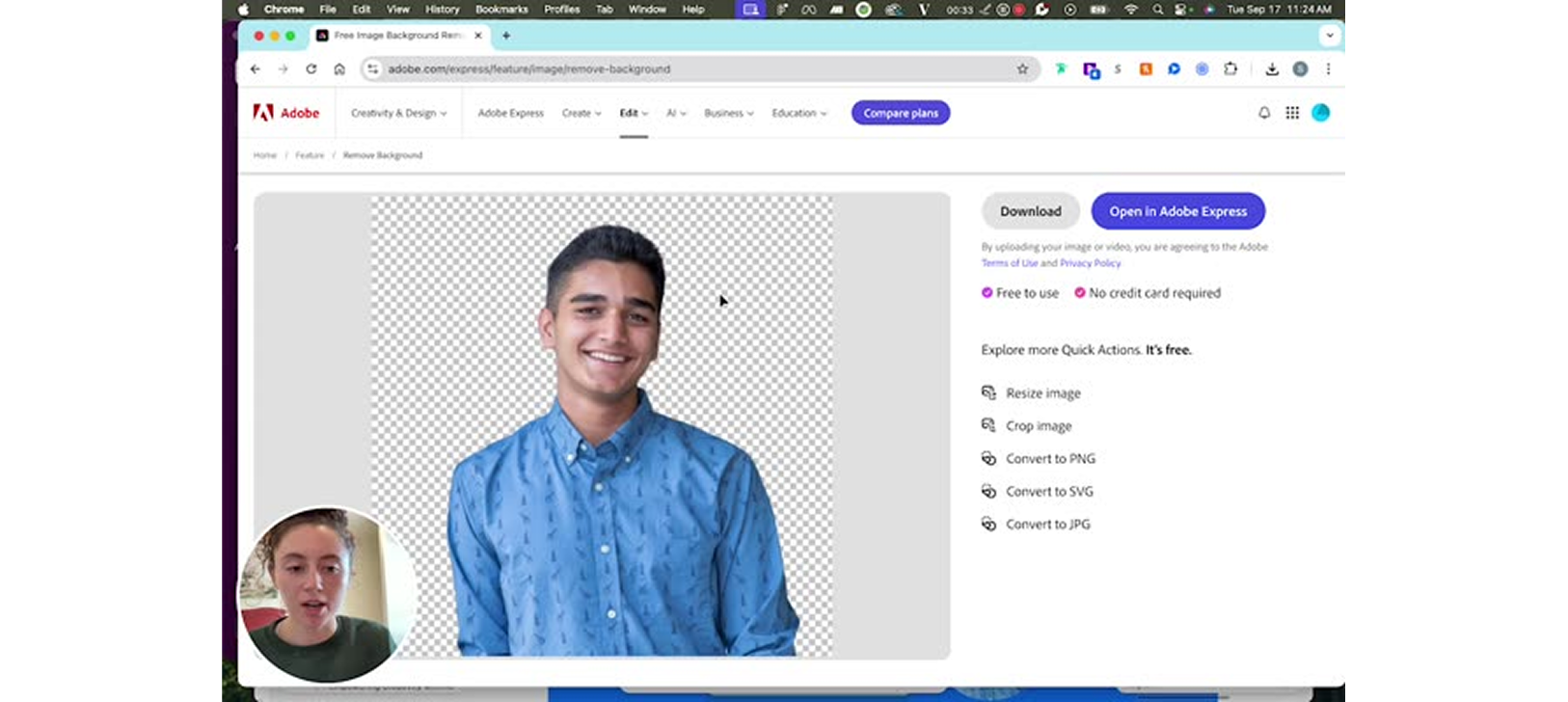
Find a Picture on LinkedIn and Remove the Background in Adobe Express
- Locate a suitable picture on LinkedIn.
- Use Adobe Express to remove the background from this picture.
3
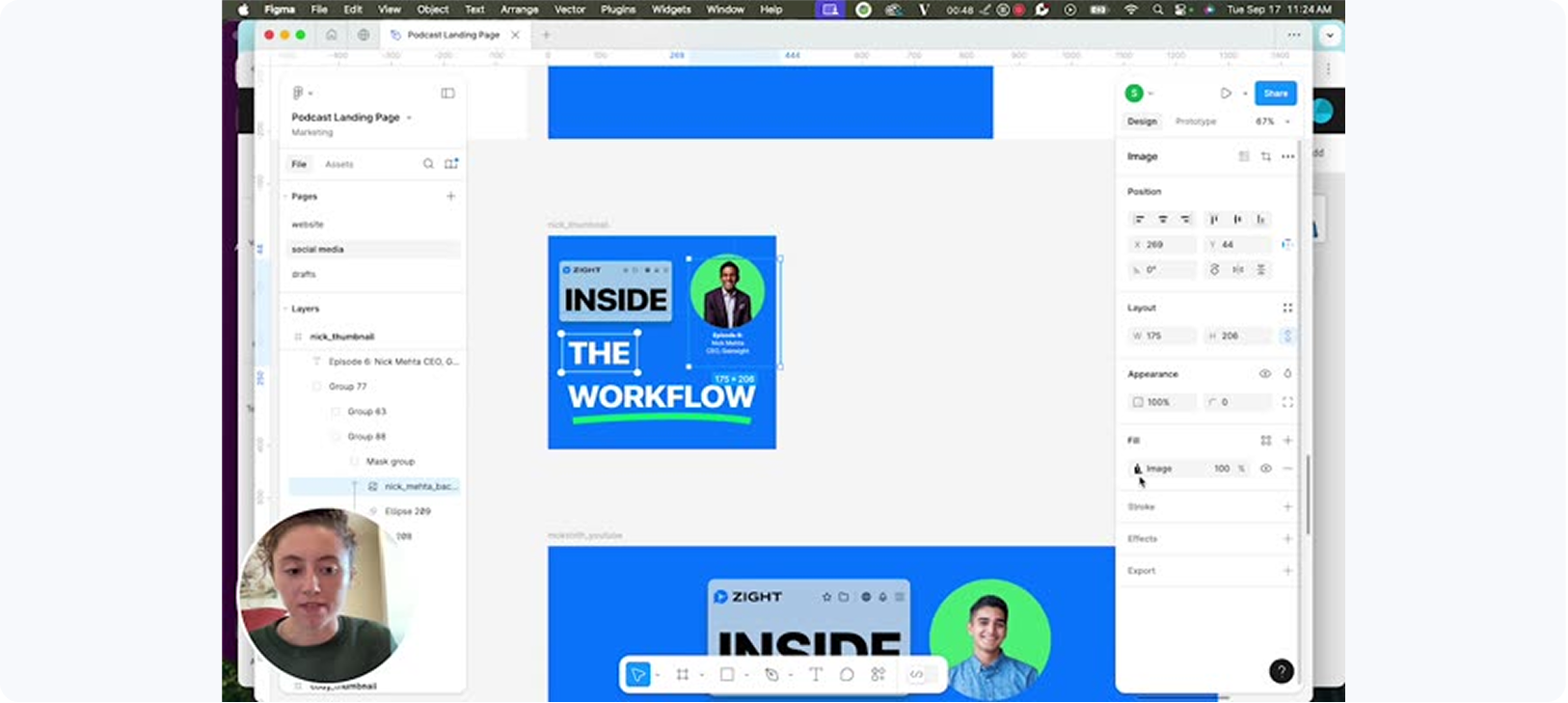
Download and Return to Figma to Replace the Image
- Download the edited picture and return to Figma.
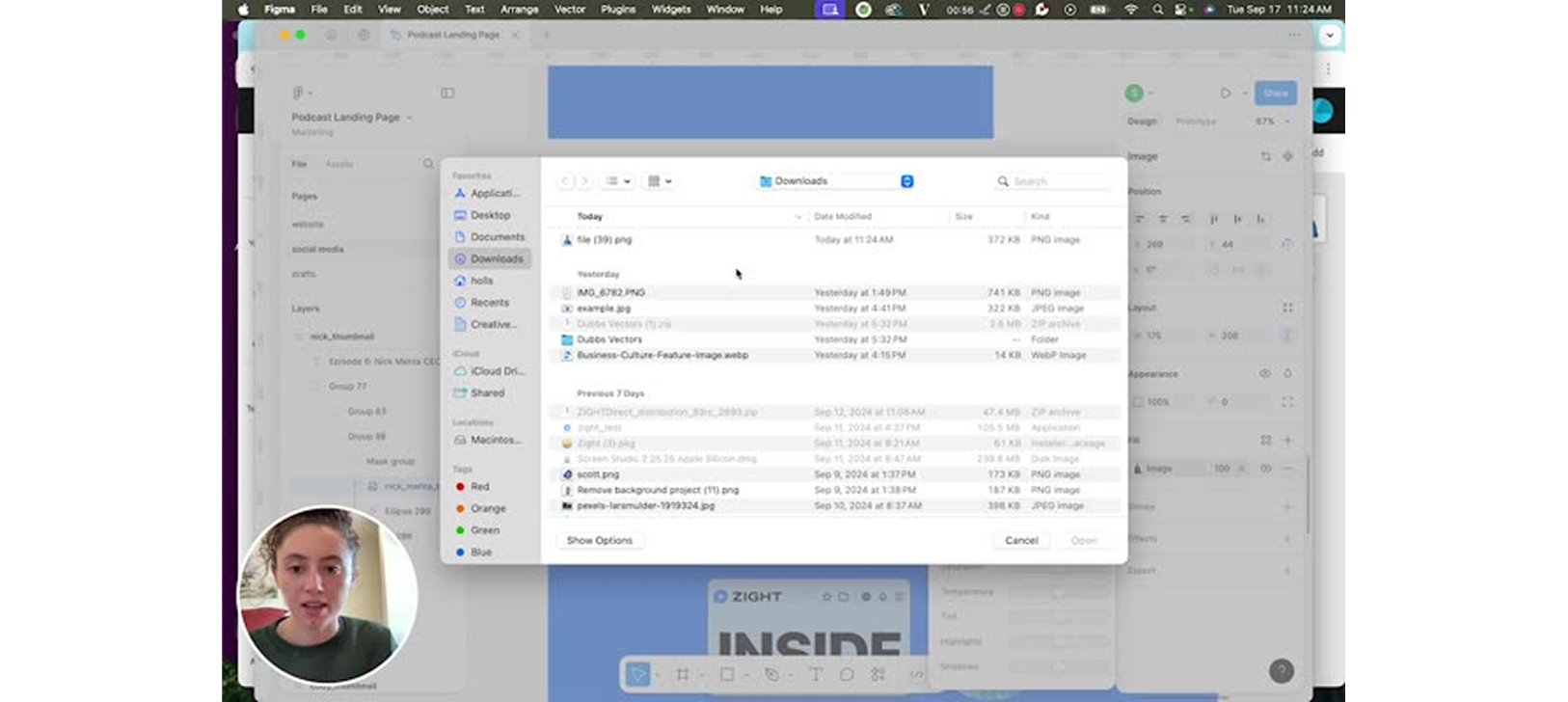
- Click on the image in Figma, and upload the new one from your computer.
4
Select the New File from Adobe Express
- Choose the file you just edited with Adobe Express.
5
Resize and Adjust the Image
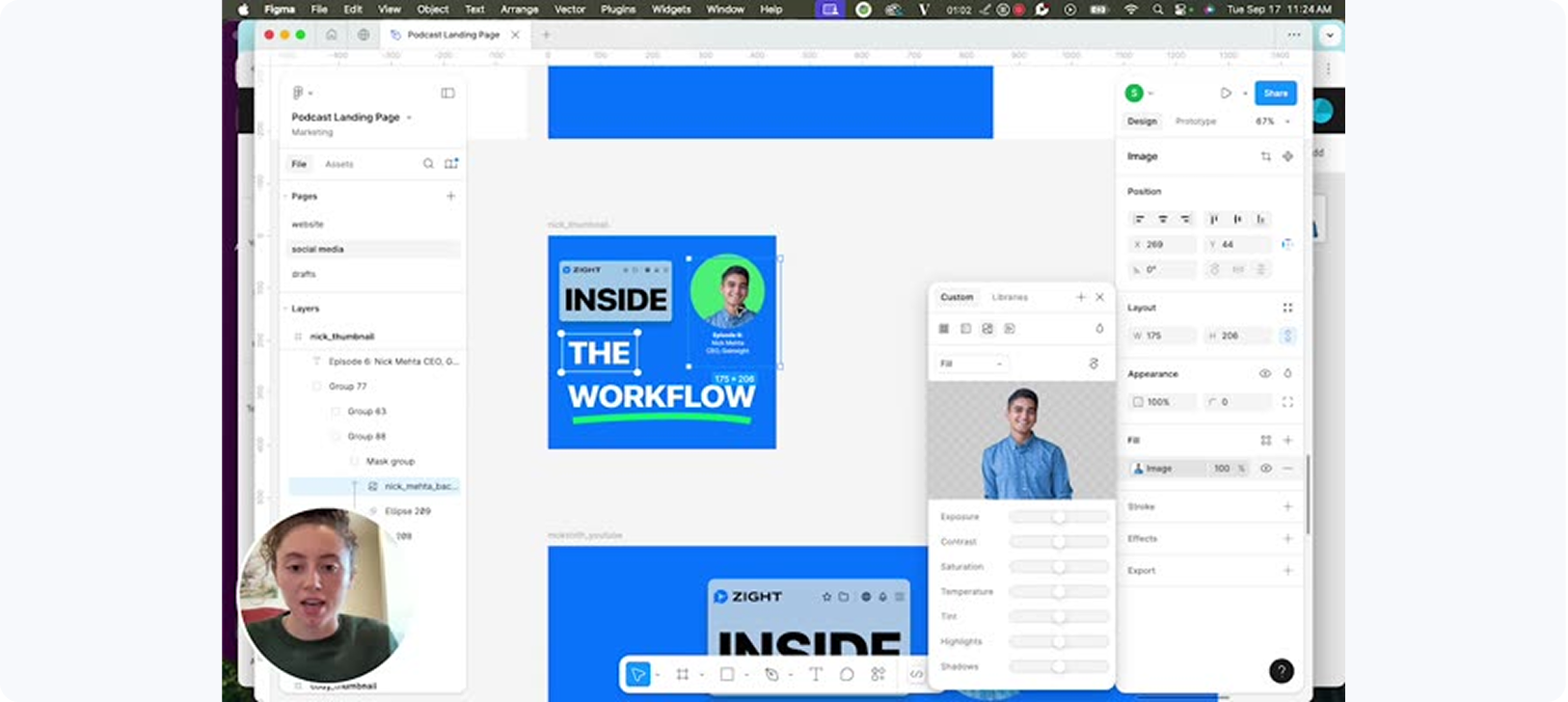
- Resize and reposition the image until it fits well.
6
Export the Updated Design
- Go to the export option, select the file type, and hit save.