You probably have heard of Discord , but are you aware of Discord’s secret weapon? Screen sharing! While Discord is widely recognized as a go-to platform for gamers with over 250 million users worldwide, its powerful features can revolutionize your business too.

What Is Discord?
There are over 2.6 billion gamers worldwide , many playing and communicating on Discord. A gamer for gamers created Discord. Now, it’s shedding its gamers-only brand and becoming as inclusive as possible for anyone who wants a “ place to talk .” Which includes you and your team members.
- One of Discord’s best features is its incredibly high server limits. A single server can support up to 250,000 members and 25,000 simultaneous online members. This is more than enough for the majority of businesses using the platform.
- Each server can host up to 500 different channels to keep hundreds of conversations well-organized by various topics.
- If you’re concerned about security and privacy when discussing sensitive information, Discord protects your communications with two-factor authentication (2FA) and a specially-designed client-server architecture that guards your IP from being exposed. Users logging in from a different IP must be verified by email, and other users can only join your server if you send them an invite link.
- Discord offers a private and safe message board, chat room, and VoIP chatting system.

What Are the Benefits of Screen Sharing?
Screen sharing in your business offers many benefits. Here’s a short list of why you should use the screen-sharing functionality in the workplace.
1. Improve productivity during meetings
Video conferencing meetings have been rising for a long time and are being adopted more today than ever.
2. Receive Better Technical Support
You need to contact technical support when applications aren’t working, or the software is glitchy. If you’re working remotely, this can cause significant issues in resolving the problem.
3. Strengthen Your Pitch to Clients
For example, if you’re running a remote meeting with a client to pitch them on your SaaS product, it’s better to show them the product in action rather than relying on static descriptions of how-to guides with the product.
How to Share Your Screen in a Discord Server
The screen-sharing feature on Discord was released back in August 2017. It allows users on your Discord server to view and engage with your screen.
1. Enable Your Video Settings
If you’re using a web browser instead of the Discord app, ensure you’ve given your web browser permission to access your camera; otherwise, you’ll end up with a blank screen instead of your smiling face. This also applies to voice settings.
- First, you must enable the proper video settings to prepare the application for screen sharing.
- Navigate to the lower left-hand part of the app (or screen if you’re using it in your web browser) and click on the little cog icon located slightly to the right of your username.
- That will take you to a list of different settings you can adjust. Select “Voice and Video” from the list to adjust these settings.
- From here, you can select your “input device,” which would be the headphones or speakers you’re using. You can leave this as default if you’re using your PC’s built-in speakers.
- Your “input device” is the microphone you’re using. Again, if you use your PC’s built-in mic, leave it to default.
- Once you’ve chosen your input and output, you should perfect a test to ensure everything works properly by pressing the “Let’s Check” button in blue.
- Scrolling down, you’ll see the video settings where you can select your video camera. If your PC has a built-in webcam, leave it on “Integrated Camera.”
- Just like with the sound, you’ll want to test the video. To do this, hit the blue “Test Video” button.

2. Join or Create a Server
To share your screen with coworkers, you’ll need to join or create a server where you’ll be video conferencing.

3. Connect to a Voice Channel
To chat with team members, click the video icon to start a live video conference, share your screen, and connect to a “voice channel.”
- Simply click on “General” to begin fiddling with this feature.
- You’ll see you’re connected and ready to start a video or share your screen.
- By clicking on the “Video” button, your PC will access your webcam and start a streaming video.
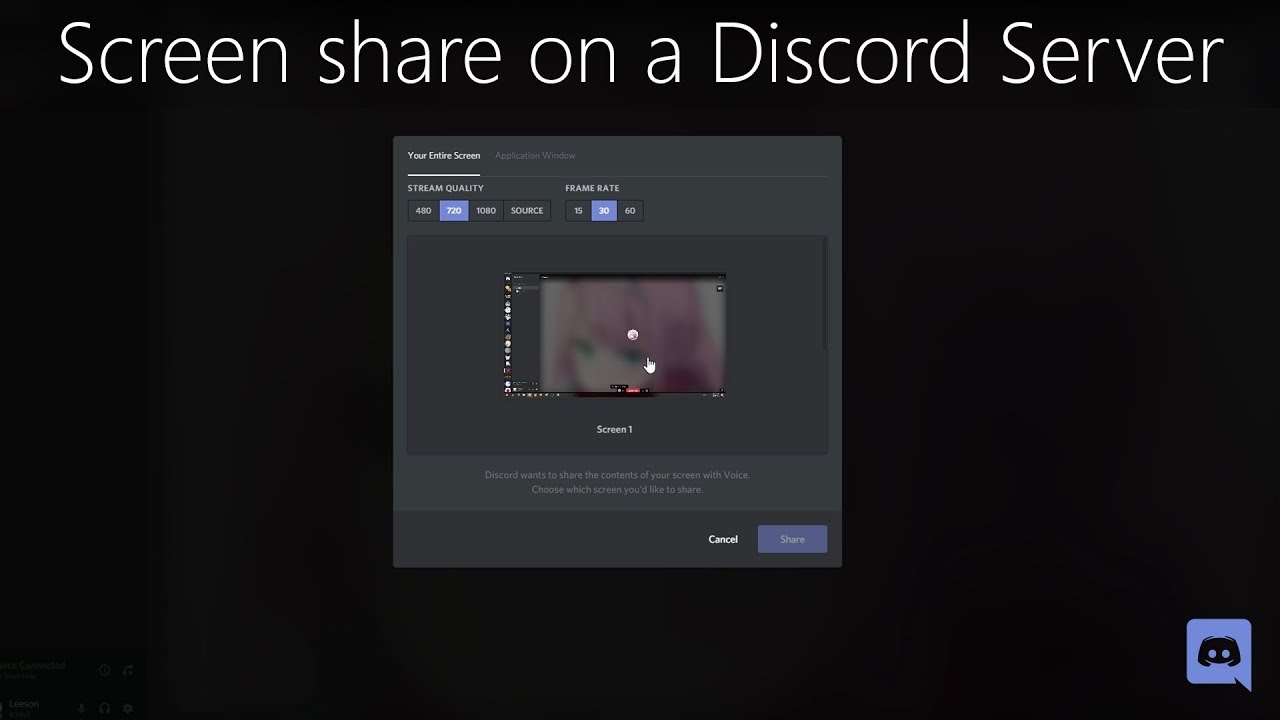
- Clicking the “Screen” button will allow you to share your screen. You’re presented with several options.
- After selecting an application or screen, you’ll be given several options before you screen share.
- You can change the Voice Channel you’re streaming in.
- You can change the resolution and framerate of the video (but this requires a Discord Nitro paid subscription).
- And you can double-check that you’re screen-sharing the right application.
How to Record Your Screen and Share It With Anyone
One of the features missing from Discord is the ability to record your screen and share the recording with your team members.
- Create a tutorial or walkthrough.
- Show work completed to your team.
- Connect with customers.
- Capture HD video recordings of your screen.
- Record high-quality webcam videos of yourself.
- Record your screen with your webcam at the same time.
- Snap unlimited screenshots with Mac or Windows .
- Create helpful GIFs.